上一篇(模板 token 规格)先把这套 authoring 语言里会出现哪些 token 立了出来。这一篇先不往实现里钻,先看一个 token 版的 hello world:文本插值、事件和值变化、条件分支,都是从这一页最小示例里开始长出来的。
文本插值:值开始进模板
组件配方 那一篇里,TemplateElement 先把组件的 UXML / USS 自动装配起来。到了这一篇,模板就不再只是静态结构了:模板树先在构造期装配出来,等树稳定挂载之后,{{ }}、on-click、v-if 这些 token 也开始在同一个宿主里生效。
所以这一页里的 TemplateBlogAppLayout,虽然仍然继承 TemplateElement,但它已经不是只负责装配的模板组件,而是一个开始消费 token 的模板宿主:
using UnityEngine.UIElements;
using Zhujing.Editor.UI.Framework;

namespace Zhujing.Editor.UI.Examples.TemplateBlogApp
{
    public class TemplateBlogAppLayout : TemplateElement
    {
        public new class UxmlFactory : UxmlFactory<TemplateBlogAppLayout, UxmlTraits> { }
        public new class UxmlTraits : VisualElement.UxmlTraits { }

        public string CurrentLessonTitle => "Text Interpolation";
        public int VisibleSectionCount => 2;
        public string SpotlightNote => null;
        public string FallbackNote => "Values now enter template text.";

        public string FormatInterpolationSummary()
        {
            return "Current phase: only {{ }} is active here.";
        }
    }
}
这一节先看 {{ }}:模板里的文本槽位怎样把属性值、空值分支和方法结果拼进最终字符串。
对应的模板可以先写成这样:
<?xml version="1.0" encoding="utf-8"?>
<ui:UXML xmlns:ui="UnityEngine.UIElements">
    <ui:VisualElement class="template-blog-page">
        <ui:VisualElement class="template-blog-page-shell template-blog-page-shell--centered">
            <ui:Label text="Template Blog App" class="template-blog-page-kicker" />
            <ui:Label text="Current lesson: {{CurrentLessonTitle}}" class="template-blog-page-copy" />
            <ui:Label text="Visible sections: {{VisibleSectionCount}}" class="template-blog-page-copy" />
            <ui:Label text="Spotlight note: {{SpotlightNote ?? FallbackNote}}" class="template-blog-page-copy" />
            <ui:Label text="Summary: {{FormatInterpolationSummary()}}" class="template-blog-page-copy" />
        </ui:VisualElement>
    </ui:VisualElement>
</ui:UXML>
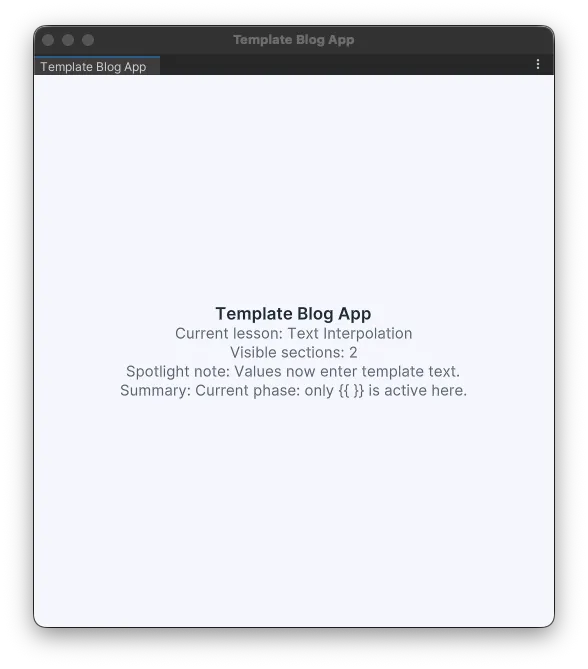
这四行已经把 {{ }} 的几种最小形态摆出来了:CurrentLessonTitle 直接读取属性,VisibleSectionCount 把数值写进最终文本,SpotlightNote ?? FallbackNote 处理空值分支,FormatInterpolationSummary() 则把方法返回值接进来。模板里的文本槽位并不只接一类值,而是在同一套写法下接住这几种最常见的表达结果。
这时候模板里还没有结构切换,也没有交互回写;变化只发生在文本属性这一层。{{ }} 先把值送进最终字符串,界面上的几行文案也开始脱离纯静态文本。
事件和值变化:同一个值开始被交互推动
第一节里已经出现过 VisibleSectionCount。第二节就直接沿着这个值往前走一步:不再只是把它显示出来,而是给它补上一组最小的 + / - 交互,让同一个值开始在按钮点击之后变化。
根组件里可以先把这个值收成一份可变状态,再补两个事件入口:
private readonly Ref<int> _visibleSectionCount = new(2);

public int VisibleSectionCount => _visibleSectionCount.Value;

public void OnIncreaseVisibleSections()
{
    _visibleSectionCount.Value += 1;
}

public void OnDecreaseVisibleSections()
{
    if (_visibleSectionCount.Value <= 0)
        return;

    _visibleSectionCount.Value -= 1;
}
模板里对应加上一组最小的步进器:
<ui:VisualElement class="template-blog-stepper">
    <ui:Button text="-" on-click="OnDecreaseVisibleSections" class="template-blog-stepper-button" />
    <ui:Label text="{{VisibleSectionCount}}" class="template-blog-stepper-value" />
    <ui:Button text="+" on-click="OnIncreaseVisibleSections" class="template-blog-stepper-button" />
</ui:VisualElement>
这里接住同一个值的是两类 token:on-click 把按钮事件送回宿主方法,{{ }} 再把更新后的 VisibleSectionCount 写回中间那一格文本。到了这一步,模板里看到的已经不只是静态结果,而是一份会被交互持续推动着变化的状态。
VisibleSectionCount 不再只是静态插值结果;按钮事件会推动它变化,而模板中的文本读数会立即跟上。条件分支:结构开始跟着同一个值切换
到了第三节,VisibleSectionCount 不再只负责“显示多少”,而是开始决定哪一段结构应该留在树里。前两节里同一个值先后接入了 {{ }} 和 on-click;这一节再把它接进 v-if / v-else,模板就从“文本会变”走到了“结构会切换”。
根组件里不用再引入一份新状态,只要从现有的计数值上再抬出一个布尔结果:
public int VisibleSectionCount => _visibleSectionCount.Value;
public bool HasVisibleSections => VisibleSectionCount > 0;
模板里把这份布尔结果接成一条最小条件链:
<ui:VisualElement class="template-blog-branch template-blog-branch--active" v-if="HasVisibleSections">
    <ui:Label text="Visible branch is mounted." class="template-blog-branch-title" />
    <ui:Label text="VisibleSectionCount is still above zero, so this branch remains in the tree." class="template-blog-branch-copy" />
</ui:VisualElement>
<ui:VisualElement class="template-blog-branch template-blog-branch--empty" v-else="">
    <ui:Label text="Empty branch is mounted." class="template-blog-branch-title" />
    <ui:Label text="Once the count reaches zero, the fallback branch takes over this slot." class="template-blog-branch-copy" />
</ui:VisualElement>这里真正变化的已经不是某一行文本,而是节点树本身:HasVisibleSections 为真时,v-if 这一支被挂载;当计数降到 0,原来的分支卸载,v-else 接手同一个位置。{{ }} 负责把值写进文本,on-click 负责推动状态变化,v-if 则开始消费这份状态带来的结构结果。
VisibleSectionCount 继续被往下消费:大于 0 时保留可见分支,降到 0 时切到 fallback 分支,变化已经从文本层走到了结构层。小结
这一篇看的其实就是一个 token 版的 hello world:先让值进文本,再让事件推动值变化,最后让同一个值开始决定结构切换。到这里,模板里已经不只是“写死的一页 UXML”,而是开始接住运行时状态,并把结果落到文本、交互和分支这三层上。
再往下一步,就不再只是看这些结果本身,而是回到它们背后的表达式抽象:{{VisibleSectionCount}}、HasVisibleSections、SpotlightNote ?? FallbackNote 这些写法为什么能被统一读懂、编译和执行。下一篇就进入这一层,看看模板系统是怎样把这些不同写法收进同一套表达式模型里的。